Help center
Talk mode and voice replies in Lucas
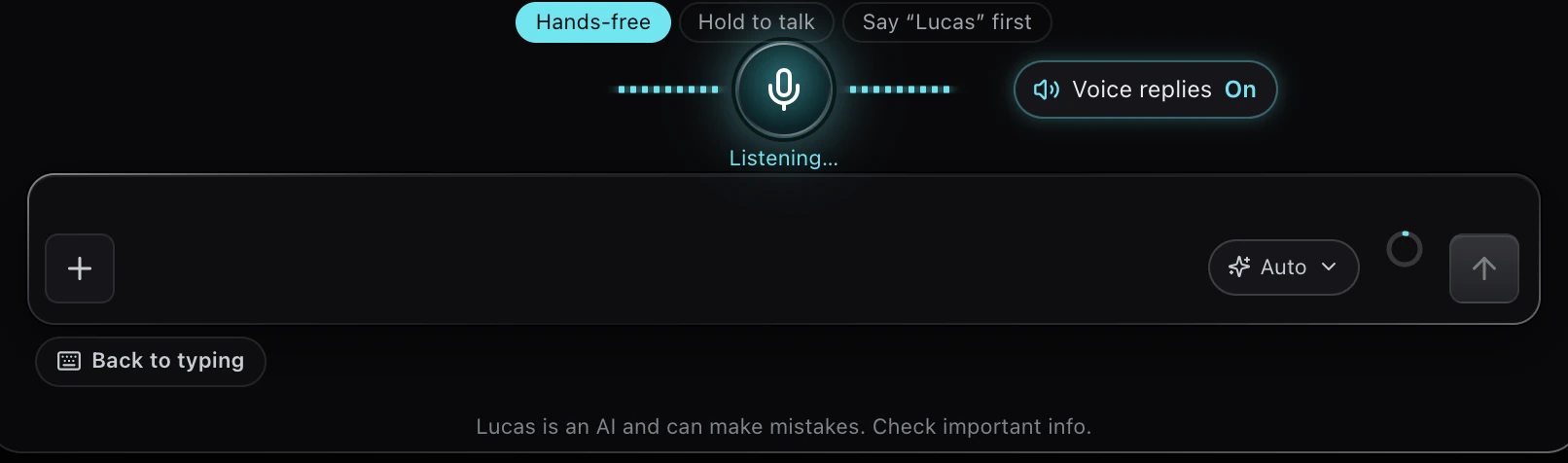
- Click the round mic button above the message box ("Talk to Lucas"). The first time, your Mac or browser asks for microphone access.
- Speak normally. The waveform moves while Lucas listens. Pause when you're done.
- Lucas answers out loud. In the Mac app, talk over him to interrupt.
- Click the mic again to end the voice chat.
- Voice replies without talking: switch on Voice replies next to the mic. Lucas reads his answers aloud while you type.
- Set Interrupt sensitivity in Settings → Personalization → Voice.